

Overview
NasRadius supports two operational modes that cater to different network architectures:| Mode | Use Case | Authentication |
|---|---|---|
| Hotspot | WiFi networks, public internet access | Captive portal, vouchers |
| PPPoE | Fixed-line subscribers, home internet | Username/password, static profiles |
The UI Toggle
At the top of most pages, you’ll find the UI Toggle buttons: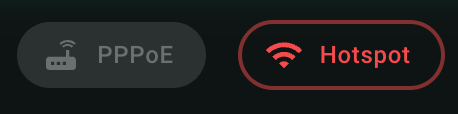
PPPoE Button
Blue button with router icon - switches to PPPoE mode
Hotspot Button
Purple button with WiFi icon - switches to Hotspot mode
How to Switch Modes
1
Locate the Toggle
Find the toggle buttons at the top of the current page (below the top bar)
2
Click the Desired Mode
- Click PPPoE to switch to PPPoE mode
- Click Hotspot to switch to Hotspot mode
3
Wait for Reload
The page content will update to show the selected mode’s data
Mode Persistence
Your selected mode is saved in your browser’s local storage. When you return to NasRadius, it will remember your last used mode.
Differences Between Modes
Dashboard Differences
| Feature | Hotspot | PPPoE |
|---|---|---|
| Stat Cards | 6 cards with sparklines | Standard metrics |
| Revenue per NAS | ✅ Available | ✅ Available |
| SMS Usage Chart | ✅ Available | ❌ Not shown |
| Plan Frequency | ✅ Available | ✅ Available |
Feature Availability
| Feature | Hotspot | PPPoE |
|---|---|---|
| Customers | Phone-based | Username-based |
| Vouchers | ✅ | ✅ |
| Coupons | ✅ | ✅ |
| Kopa (BNPL) | ✅ (in sidebar) | ✅ |
| Payment Settings | ✅ | ❌ |
| NAS Settings | ✅ | ✅ |
Sidebar Changes
When switching modes, the sidebar navigation remains mostly the same. However:- Kopa appears prominently in Hotspot mode
- Payment Settings tab is only available in Hotspot mode’s Settings page
Tenant Feature Restrictions
When a mode is disabled:- The toggle button is grayed out
- Clicking it has no effect
- The system automatically uses the enabled mode
When to Use Each Mode
Use Hotspot Mode When
Use Hotspot Mode When
- Managing WiFi hotspots in cafes, hotels, or public spaces
- Using voucher-based authentication
- Offering time-limited or data-limited packages
- Accepting M-PESA payments via captive portal
Use PPPoE Mode When
Use PPPoE Mode When
- Managing home/office fixed-line connections
- Using username/password authentication
- Offering monthly subscription packages
- Customers connect via PPPoE-enabled routers
Troubleshooting
| Issue | Solution |
|---|---|
| Toggle not appearing | Refresh the page or check if tenant has both modes enabled |
| Mode not switching | Check browser console for errors; try clearing cache |
| Data not updating | Refresh the page after switching modes |
| Wrong mode on login | The system defaults to PPPoE; use toggle to switch |