

Overview
NasRadius supports integrated mobile money payments through:- M-PESA (Direct integration via Safaricom Daraja API)
- Kopokopo (Payment aggregator with STK Push)
Payment settings are only available in Hotspot mode. PPPoE mode uses a different payment workflow.
Accessing Payment Settings
1
Switch to Hotspot Mode
Ensure you’re in Hotspot mode by clicking the Hotspot toggle button at the top of the page
2
Navigate to Settings
Click on Settings in the left sidebar
3
Select Payment Settings Tab
Click on the Payment Settings tab (5th tab)
Configuring M-PESA
M-PESA integration requires credentials from the Safaricom Daraja portal.Prerequisites
Before configuring, you’ll need:- A Safaricom Daraja developer account
- An approved M-PESA Till or Paybill number
- API credentials (Consumer Key, Consumer Secret, Passkey)
Configuration Steps
1
Click Configure/Edit
Click Configure Payment Settings (or Edit Settings if already configured)
2
Select M-PESA Provider
Choose M-PESA from the Payment Provider dropdown
3
Select Mode
Choose your payment mode:
- Till: For Buy Goods payments
- Paybill: For Paybill payments
4
Enter Credentials
Fill in the following fields:
| Field | Description |
|---|---|
| Consumer Key | From Daraja portal |
| Consumer Secret | From Daraja portal |
| Shortcode | Your M-PESA shortcode |
| Till Number | Your Till number (if using Till mode) |
| Passkey | Your Lipa na M-PESA passkey |
5
Save Configuration
Click Create (or Update) to save your settings
Configuring Kopokopo
Kopokopo is a payment aggregator that simplifies M-PESA integration.Prerequisites
- A Kopokopo merchant account
- API credentials from Kopokopo dashboard
Configuration Steps
1
Click Configure/Edit
Click Configure Payment Settings
2
Select Kopokopo Provider
Choose Kopokopo from the Payment Provider dropdown
3
Enter Credentials
Fill in the following fields:
| Field | Description |
|---|---|
| Client ID | From Kopokopo dashboard |
| Client Secret | From Kopokopo dashboard |
| STK Till Number | Your Kopokopo Till number |
4
Save Configuration
Click Create to save your settings
Viewing Current Configuration
Once configured, the Payment Settings page displays your current configuration: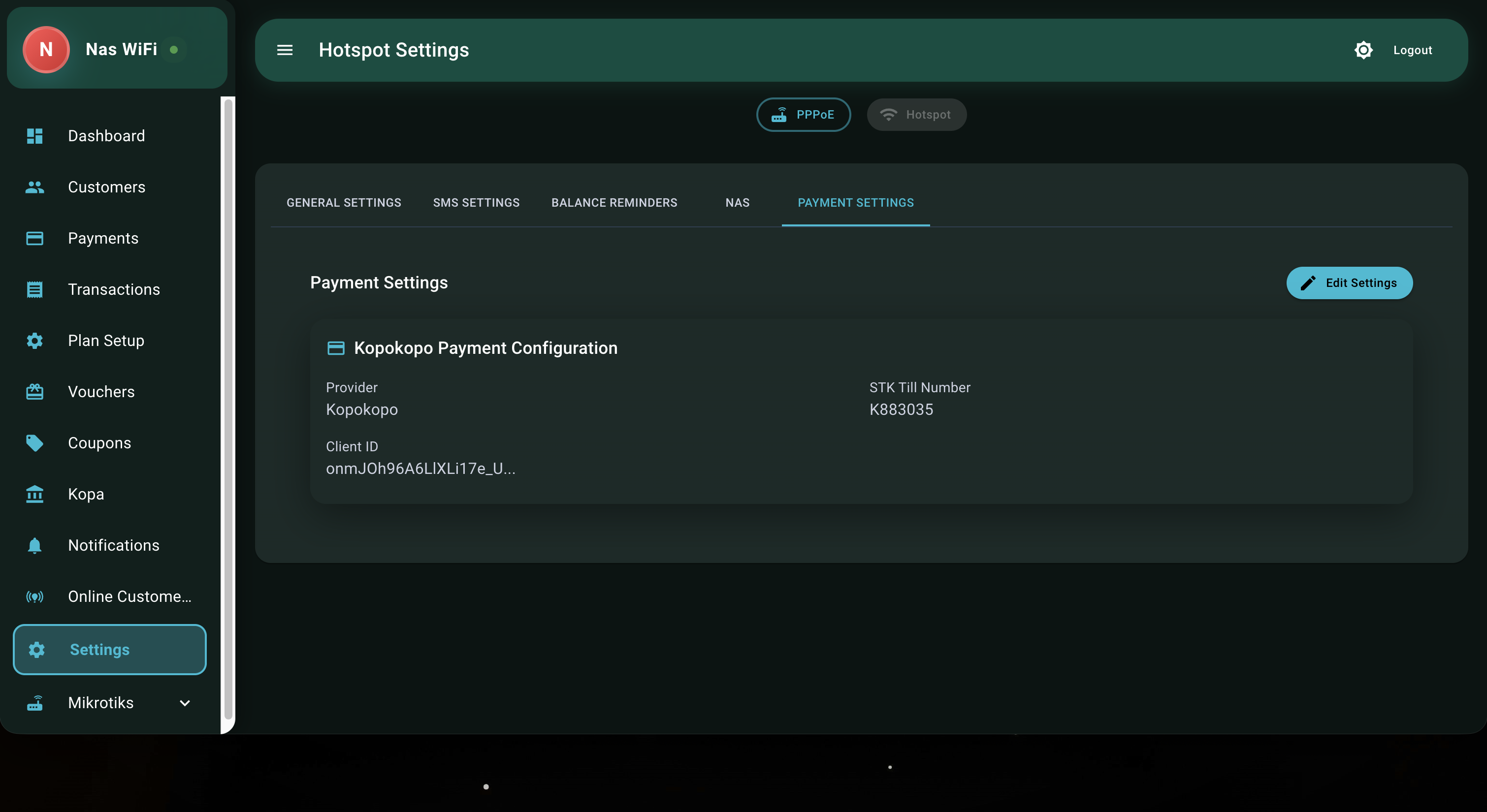
- Current provider (M-PESA or Kopokopo)
- Payment mode (Till/Paybill for M-PESA)
- Configured numbers (partially masked for security)
How Payments Work
Once configured, customers can pay through the Captive Portal:Troubleshooting
STK Push Not Received
STK Push Not Received
- Verify the customer’s phone number is correct
- Check that credentials are valid
- Ensure the shortcode is active
Payment Not Reflecting
Payment Not Reflecting
- Check the Transactions page for payment status
- Verify the callback URL is accessible
- Contact support if the issue persists
Invalid Credentials Error
Invalid Credentials Error
- Re-check your Consumer Key and Secret
- Ensure you’re using production (not sandbox) credentials
- Verify the passkey matches your shortcode